How to monitor a Software-Raid on Windows 2003 by using the EventLog Monitor of MonitorWare Agent.
Article created 2008-01-17 by Andre Lorbach.
This article will guide you in how to monitor a software raid on Windows 2003 by filtering specific events by using the EventLog Monitor in MonitorWare Agent. This is also possible with EventReporter, however this article will target the more powerful MonitorWare Agent.
- You can download a preconfigured configuration from here, which you can import on your target system. The configuration sample will have comments for better understanding. The MonitorWare Agent Client can import the XML/REG configuration file by using the “Computer Menu”.
Raid Systems have a big advantage for failover support and prevent data loss. But what when a hard disk is failing, you don’t know it? Windows Server Systems often run for months without being monitored, and what if two hard disk fail in this time period? A nightmare for every system administrator. So we will setup a EventLog Monitor in MonitorWare Agent which alert you by email in case of a raid brakes, a hard disk fails or anything else bad happens.
Table of Contents
1. Creating a Windows Software Raid (Skip if Raid exists!)
1.1 Convert Hard disks into dynamic disks
1.2 Adding a Mirror to the existing system partition
2. Installing and Configuring MonitorWare Agent
2.1 Download and Install MonitorWare Agent
2.2 Setup up basic MonitorWare Agent configuration
2.3 How to verify that the alert is working?
Final Thoughts
1. Creating a Windows Software Raid (Skip if Raid exists!)
1.1 Convert Hard disks into dynamic disks
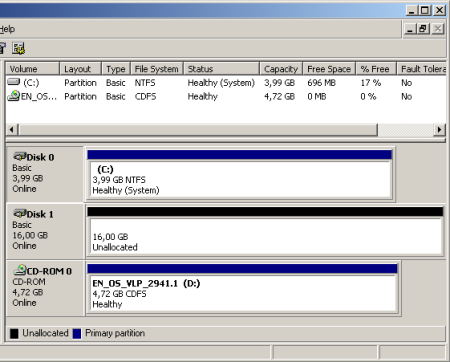 So in case you have no Software Raid configured yet, open the Computer Management und go to the Disk Management. You will see your System drive and you should have a second hard disk with enough free space available. For a sample see the screenshot. |
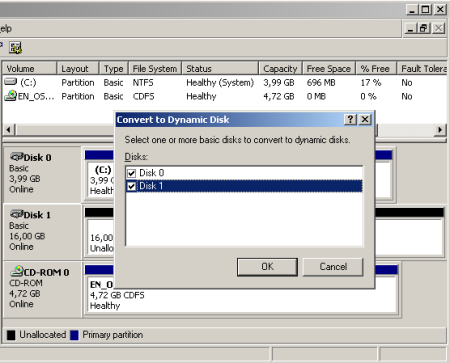 Right-Click one of the disks and click on “Convert to Dynamic Disk”. A wizard will appear, select both hard disks, the system one and the one you are going to use as raid mirror. Once you have accepted this, a couple of questions will follow which you need to accept and finally a reboot is required. This is because Windows can not convert a hard disk if the system is running on it. |
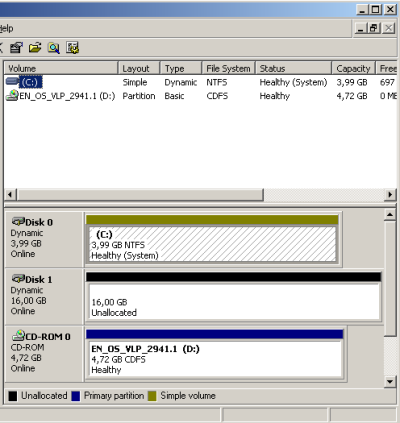 Once you have rebooted, logged in and open the Disk Management. You will notice the different partition color. This means your system partition runs on a dynamic disk now, the conversion went fine. If not review the System EventLog for possible errors. |
1.2 Adding a Mirror to the existing system partition
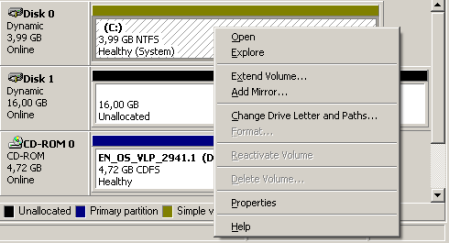 All requirements for a software raid (mirror) are now given, so kindly right click your system partition and click on “Add Mirror“. A requester will open which will ask you on which disk you want to add the mirror. In our sample, this would be disk 1. After the mirror has been added, Windows will start regenerating the mirror which means it will sync both hard disks. This may take some time depending on the size of your hard disk, maybe even hours. |
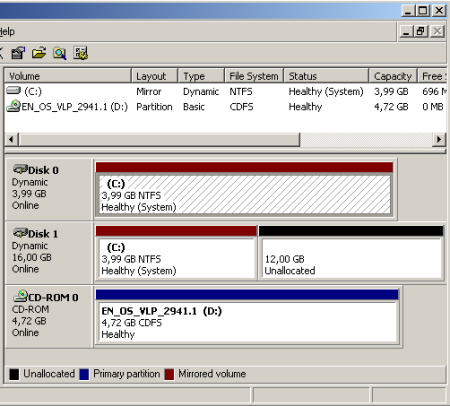 As you can see the partitions are now marked red which represents the color for mirrored partitions. After the synchronization has finished, the red partitions will be marked as healthy in the Disk Management view. |
2. Installing and Configuring MonitorWare Agent
2.1 Download and Install MonitorWare Agent
| So if you haven’t done so already, go to www.mwagent.com and download the latest MonitorWare Agent Version. It is always recommended to use the latest Version of MonitorWare Agent. Once the Download is done, go ahead and install it. You may have to restart after installation, this depends on your System. |
2.2 Setup up basic MonitorWare Agent configuration
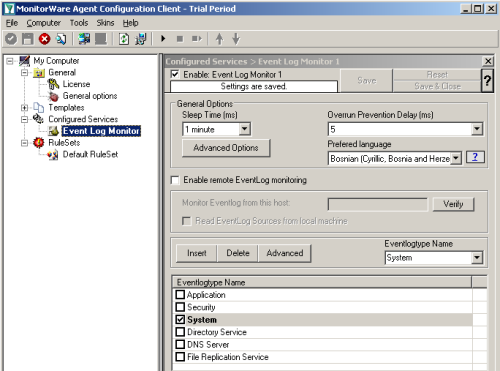 Start the MonitorWare Agent Client and skip the wizard on startup. First we create new “Event Log Monitor” Service. Uncheck all event log types except System, as this is the only event log needed to achieve our goal. If you like to monitor other Event Log Types too, you may select them. It will have no impact on our following configuration. |
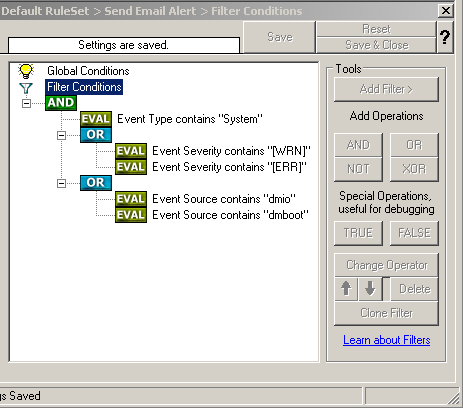 Now we can add another Rule called “Send Email Alert”. This rule will have a few filters to only allow events with warning or error severity. The Eventlogtype is System and the event sources which matter to us are dmio and dmboot. The filters should look like in this screenshot. For additional reference, here is a list of possible dmboot und dmio events: Event ID: 1, “dmio: Device %2,%3: Received spurious close”
The next step is to create a SendEmail Action and configure it like in the screenshot. Here is the Event message we suggest to use, but feel free to create and modify your own: You need to replace the mail server, sender and recipient with yourself. |

2.3 How to verify that the alert is working?
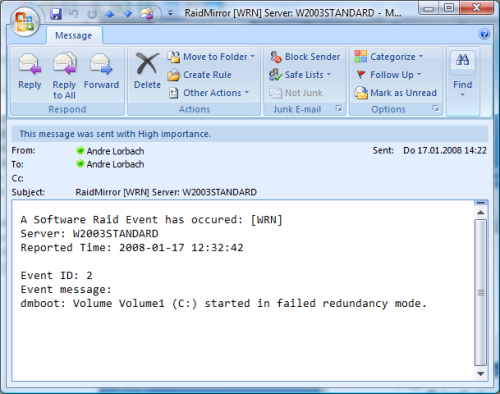 There is a simple way to test if our alerting is working, however it isn’t without risks. I only recommend you to do this step if your really want to test the alerting! I do NOT recommend to perform this test on a productive system! First of all shutdown the server and open the case. Then disconnect the second hard disk by removing the power or the data connector. Then boot the server, once windows is starting the services you should get an alert by email. It should look like the sample email in the screenshot. If the test was successful, you can shutdown your server again. Connect the power / data connector and boot your server. You may receive the same email message again, as the raid is now OUT OF SYNC. So you need to open the Disk Management and right click the disk with the exclamation mark. Then select “Reactivate Disk”, the raid will begin resynchronization immediately after this. |
Final Thoughts
I hope this article will help you solving your tasks and shows you the potential of MonitorWare Agent, and what you can archive with it. Feel free to email me for recommendations or questions.