Step-By-Step Guides
Article created 2003-05-09 by Rainer Gerhards.
Sample Syslog Device Configurations
MonitorWare Agent can receive vital network status information from a variety of devices. As these devices are from many different vendors and have many different applications, it is impossible to provide detailed configuration information for all of them.
We provide configuration information for some well-known devices. Hopefully, the samples will provide some idea of how other devices might be configured.
NetGear RT314 Syslog Configuration
The RT314 supports syslog. Unfortunately, syslog messages cannot be enabled using web interface. It must be done using telnet, a command line interface.
To the best of our knowledge, the NetGear RT314 is compatible to ZyXEL Prestige 314. As far as we know, both of them operate with a version of the ZyNOS operating system that supports a menu system via telnet. As such, the description here does also apply to the ZyXEL product. There might be other routers available that base on the same operating system. If in doubt, start a telnet session to your router and check if this step-by-step guide applies to your device.
In our example, we assume the router has address 172.16.0.100. The syslog server has the address 172.16.0.4.
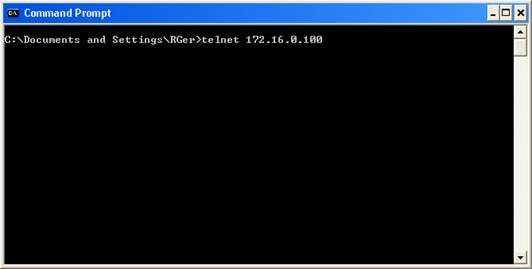
First, open a command prompt (“DOS box”). Then, type “telnet 172.16.0.100” as shown in this sample:
The router will prompt you for the password. Enter it and the following and the main menu will appear:
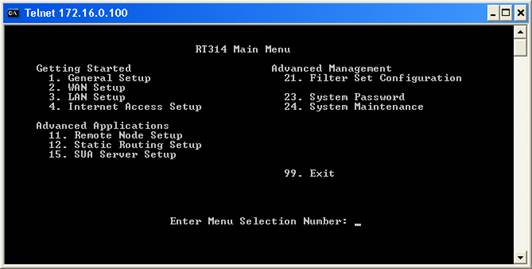
The syslog server’s address can be configured under “System Maintenance”. As such, enter 24 and press enter. The system maintenance menu appears:
There, enter 3 (as shown below) and press enter:
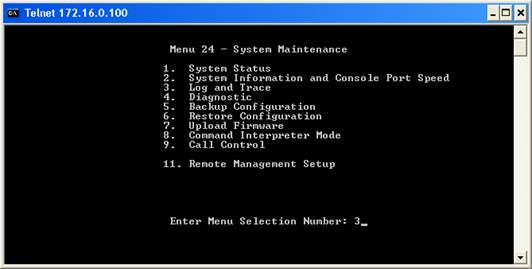
Now enter 2 and press enter. The syslog properties appear:
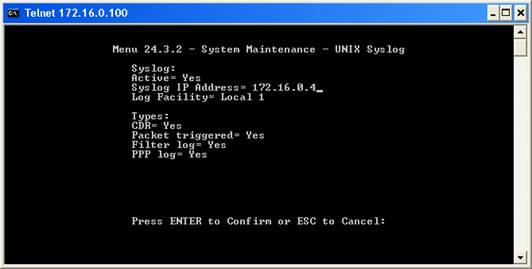
The screen shot displays the correct configuration for maximum logging. To change the properties, press enter. Each time you press enter, you will move from field to field. Once you are at the beginning of a field, you can simply type the value you would like to change. Follow the instructions on the lower left to change the configuration.
Make sure that you set “Active” to “Yes”, otherwise the RT314 will not generate syslog messages. Under “Syslog IP Address”, type the IP Address of the MonitorWare Agent. Please note that you must use an IP address – the computer name will not work. Under “Log Facility”, select the facility(Syslog Facility) the messages will be sent with. The RT314 does support only LOCAL_1 to LOCAL_7 – other facilities are not supported. If in doubt, leave this setting at “Local 1”.
Under types, select which events will be sent via syslog. All those with “Yes” configured will be sent.
Please see the RT314 manual for details.
Finally, press enter to confirm your configuration choice. This will store and active the new configuration and return you to the “Log and Trace” menu. There, press, ESC to return to the “System Maintenance” menu and ESC once again to return to the main menu. There type “99” and enter to exit the RT314 configuration utility.
Please note that telnet will display a “Connection to host lost” message – this is no error but the expected behavior.
This procedure concludes the configuration of the RT314. It will now generate syslog messages that can be received by the MonitorWare Agent.
HP JetDirect Interfaces
JetDirect interfaces are network print server. They are used internally in printers like the successful HP LaserJet series. They JetDirect is also available as external boxe to connect any brand of printer to the network.
The HP JetDirect interfaces support syslog protocol. To the best of our knowledge, they send status as well as print job information via syslog protocol. Status notifications include things like toner low or out of paper. Print job information includes data on completed an aborted print jobs.
The JetDirect Interface can be configured via the so-called HP JetAdmin program. In our sample, we use the web-based JetAdmin tool (HP is actively promoting the web version today).
In our sample, we have a very basic configuration. The HP Web JetAdmin is installed on a server with the surprising name “SERVER”. The printer we are configuring has the also surprising name “HP LaserJet 4000”. The syslog server service is running on a machine with IP 10.0.0.1. In the sample, we configure the JetDirect interface to send syslog messages to this central server. We assume that you are already familiar with the HP Web JetAdmin program. Please note that the menus shown below can be slightly different depending on the HP Web JetAdmin version and the actual printer or JetDirect Interface model.
First, start the HP Web JetAdmin by pointing your browser to http://server:8000. This is the default address for Web JetAdmin. This will bring up the HP web interface.
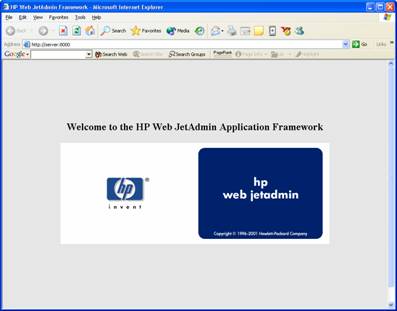
Click on the jetadmin logo and click the continue button that pops up. Please note that depending on your browser settings a number of Java security warnings pop up. You need to allow execution of the applets, otherwise JetAdmin does not work. Continue until you reach the main menu:
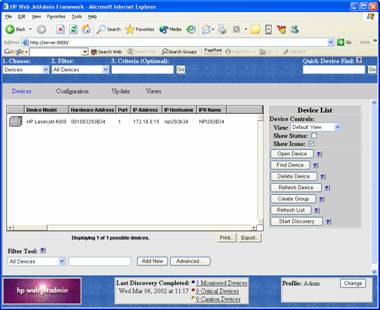
Double-click the printer. A screen like to following appears:
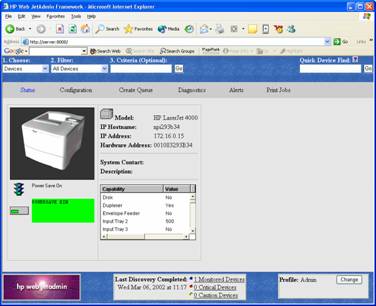
Click on the “configuration” tab. Then, select “network” in the left-hand menu.
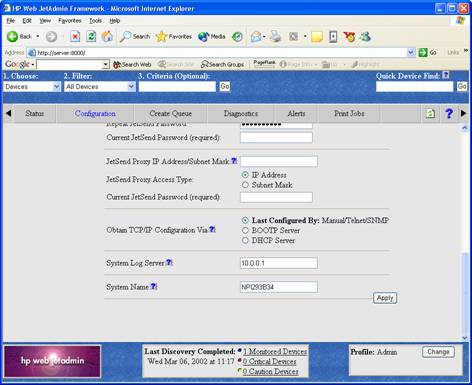
Find the “System Log Server” entry. Here, you must enter the IP address of the system the syslog server service is running on.
After doing so, press “Apply”. You will be directed to a “success” page:
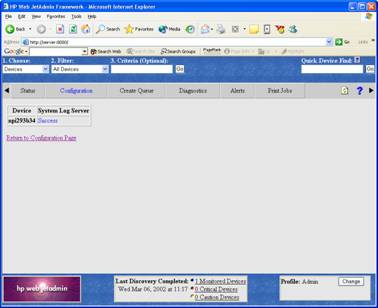
The syslog server address is now set and syslog message logging activated. You can now either return to the configuration menu or select any option in the menu available.
This procedure concludes the configuration of the HP JetDirect Interface. It will now generate syslog messages that can be received by the syslog server service.
Cisco PIX
Cisco’s PIX is a well known firewall appliance. It is highly scalable, from a small office or home environment to an enterprise environment. PIX is very widely used.
Cisco’s PIX supports syslog over both TCP and UDP. While WinSyslog supports both of these protocols, we will focus on UDP in our step-by-step guide as this is the standard protocol. Therefore, if you would like to consolidate logs from multiple devices and one of them is PIX, you will probably take the syslog over UDP route.
PIX can be configured using either a command line interface or the so-called PIX Device Manager (PDM), an HTML configuration application that comes with the PIX. Typically, PDM is used and as such we focus on it in our step-by-step guide.
First, start PDM by pointing your Java-Enabled web browser to the PIX. Important: Use a HTTPS URL. This is badly documented by Cisco. Using http instead of https will cause your connection to fail! If, for example you PIX has the internal IP address of 172.16.0.1, use the following URL:
https://172.16.0.1
Once this is done, the PDM opens. Most probably, a number of Java security and certificate related questions open. Please allow the product to proceed. Also, a number of browser windows open. Finally, you should see a window similar to the following:
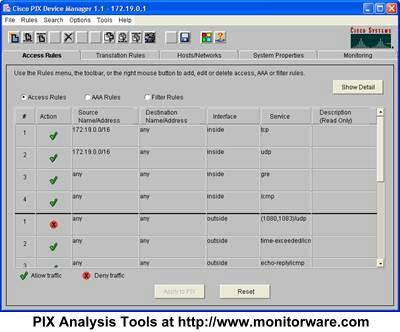
PDM Start Screen
Now, switch to the system properties tab:
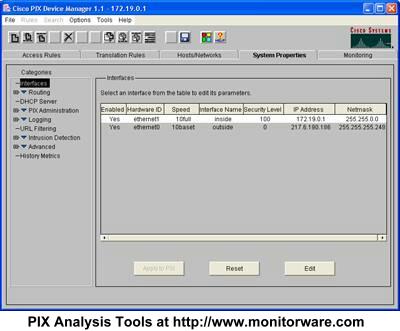
Next, expand “Logging” in the treeview and then select “Logging Setup”. A screen similar to this one appears:
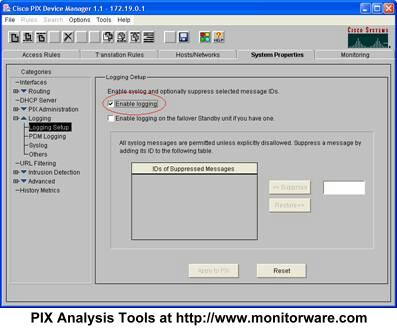
Make sure the “Enable Logging” box is checked as in the screenshot. Then, select “Syslog” in the treeview. This brings you to the page where syslog servers can be configured:
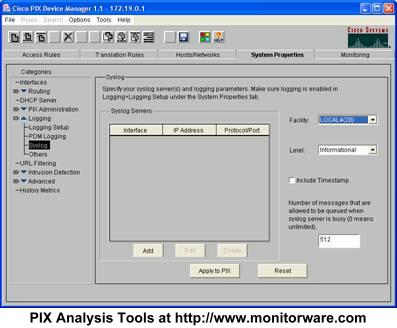
In the above example, no server is configured so far. This is the default setting for a freshly installed PIX. We will now configure a syslog server at IP 172.19.0.2. Press “Add” and the following dialog appears:
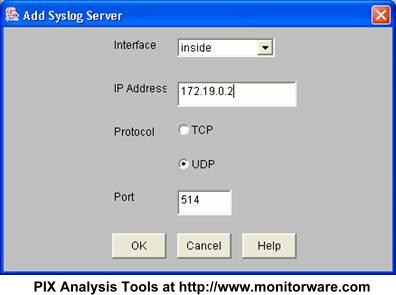
Typically, your syslog server will reside on the internal network. As such, leave the interface at “inside”. Then enter the IP Address of your syslog server into the field “IP Address”. In the screenshot, this has already been done. Next, make sure UDP is selected as protocol. The port value of 514 is the default and also the standard. There should be little need to modify it. If you do, make sure you fully understand the implications as a wrong port can disrupt traffic.
Of course, if you would like to use TCP logging, you can do so. However, in this case MonitorWare Agent must be configured to have at least one syslog listener running at the specified TCP port. Also, please note that other products do typically not support syslog over TCP and as such, messages from these devices cannot be received by a syslog over TCP receiver.
After configuring the syslog settings, be sure to press OK to return to the PDM main screen:
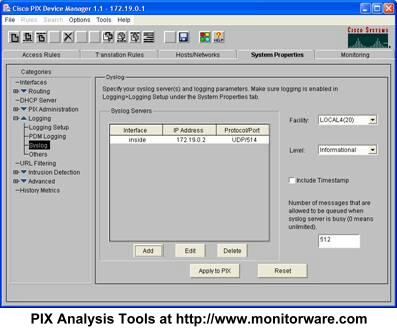
Here, you can modify the syslog facility and level as well as include a PIX timestamp – see settings on the right.
Important: the configuration you have created has not been saved so far! To save it, you must press the “Apply to PIX” button. Depending on your configuration and PIX model, the “Apply” can take some time.
Once the “Apply” is finished, you see the following screen:
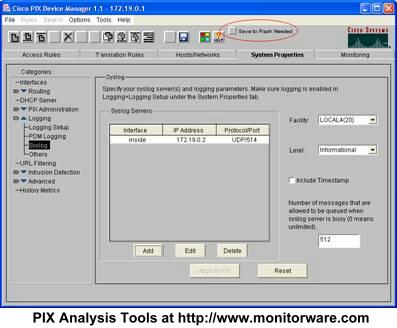
Please note the new “Save to Flash Needed” button. This one can easily be overlooked. When it is present, a new PIX configuration has been created but not permanently saved on the PIX. So you need to press “Safe to Flash Needed” in order to complete your configuration! If you forget the step, the PIX will either not forward syslog messages at all or stop doing so after the next PIX reboot.
Make sure that you see the following dialog before continuing:
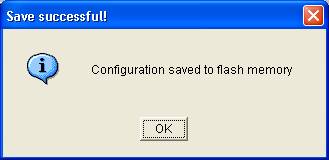
This concludes the basic configuration of your PIX. You should now receive syslog messages on the configured syslog server. You can now close Cisco’s PDM. Of course, you can return at any time to change configuration settings or enable syslog messages to additional syslog servers you have created.
Other Cisco Products
All Cisco products we know support logging via syslog. This article covers all devices that use IOS (e.g. routers and switches). Unfortunately, this is not a full step-by-step guide as the others are. We are working to create a more verbose version of the Cisco guide – but we still decided to leave it in here, as it possible is useful for many users.
Syslog logging needs both to be configured as well as turned on. To configure, you must be in enable mode (see your Cisco documentation on how to enter enable mode). Then switch to configuration mode (the command is “configure terminal” or “conf t” as abbreviation). First of all, you need to specify the syslog host that the messages should be send to. This is the name or IP address of the system MonitorWare Agent is running on. Though a DNS-resolvable name can be used, we strongly recommend using the IP address directly. If your machine has the address “195.123.45.6” then the command is “logging 195.123.45.6”. Next, logging needs to be turned on. This command is “logging on”. Then exit from configuration mode and save the new configuration.
This setting enables syslog logging for common messages (e.g. router configuration and startup). If you would like to have traffic-related logging activated, you need to create traffic filter rules that specify the “log” option and apply them to the interface you are interested in.
More and detailed information can be found at Cisco’s web site under the “logging” command. Please note: this link is to one of Cisco’s product documentation areas. You might want to search the Cisco site to find information specific to the product (router, switch, firewall, etc.) you are using.