ODBC Database Options#
Use this action to write matched events or messages to a database through ODBC.
The ODBC database action is an integration feature. It can write to the built-in Adiscon default schema or to a user-defined schema in any supported ODBC database. Use the default schema when you want the fastest supported setup or compatibility with Adiscon tools. Use custom mapping when the product needs to write into an existing database design.
Common usage patterns#
Default schema: Use the built-in
SystemEventsandSystemEventPropertiestables when you want the shortest supported setup or when downstream Adiscon tools expect the standard schema.Custom schema integration: Map event properties to an existing table with your own column names and data types.
Microsoft SQL Server stored procedures: Use the call-statement option only when your SQL Server design requires a stored procedure instead of a standard
INSERTstatement.
Out of scope#
This action does not design your database for you. It does not decide table layout, indexes, retention policy, reporting logic, or broader analytics architecture. For custom integration, you own the destination schema and the mapping decisions.
Before you start#
Install a supported ODBC driver on the Windows host that runs the service.
Create an ODBC System DSN for the target database. User DSNs and file DSNs are not suitable for the service path.
Verify that the database server is reachable and that the configured credentials have the required permissions.
Decide whether the action should:
create and use the default Adiscon tables, or
write into an existing user-defined table
Minimal action path#
Create and test an ODBC System DSN outside the product.
Add a Write to Database action to the relevant ruleset.
Configure the DSN, credentials, and connection settings.
Choose one of these paths:
keep the default schema and use Create Database, or
set the table name and field list for a custom schema
Save and apply the configuration.
Send a matching test event or message and verify that rows are inserted.
Default schema versus custom schema#
Default schema#
Use the default schema when you want a predictable starting point or when you need compatibility with other Adiscon components that expect the standard table layout. In this path, the action can create the default tables for you.
Custom schema integration#
Use a custom schema when your organization already has a database design that WinSyslog, EventReporter, or MonitorWare Agent must write into. In this path, the action does not infer the schema. You must set the target table name and map each field deliberately.
If you diverge from the default schema, do not assume that Adiscon tools that expect the standard layout will continue to work unchanged.
Connection options#
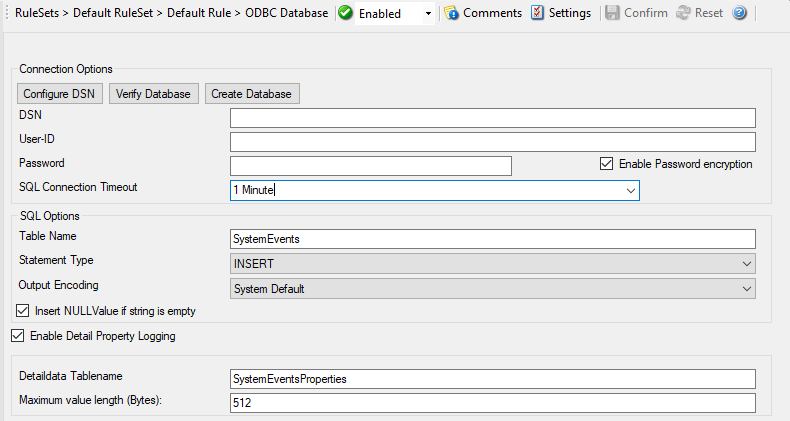
Action - ODBC Database Connection
DSN#
- File Configuration field:
szODBCDsn
- Description:
Name of the ODBC System DSN used for the database connection. The DSN must already contain the correct driver and target-database connection details.
User-ID#
- File Configuration field:
szODBCUid
- Description:
User name for database authentication, if the DSN and driver require it.
Password#
- File Configuration field:
szODBCPwd
- Description:
Password for the configured user ID. Use an account with only the permissions needed for this action.
Enable Encryption#
- File Configuration field:
nODBCEnCryption
- Description:
Stores the configured ODBC password encrypted instead of plaintext. Enable this unless you have a documented reason not to.
SQL Connection Timeout#
- File Configuration field:
nSQLConnectionTimeOut
- Description:
Maximum time to wait while opening the database connection.
SQL options#
Table Name#
- File Configuration field:
szTableName
- Description:
Target table name for database writes. Keep the default
SystemEventswhen you use the built-in schema. Set it to your existing table name when integrating with a custom schema.
SQL Statement Type#
- File Configuration field:
nSQLStatementType
- Description:
Selects whether the action uses a normal
INSERTstatement or a Microsoft SQL Server call statement for stored procedures. The call-statement path is Microsoft SQL Server specific.
Output Encoding#
- File Configuration field:
nOutputEncoding
- Description:
Controls how string data is encoded when written. In most environments, System Default is the correct setting unless you have a confirmed character-set requirement.
Insert NULL Value if string is empty#
- Description:
Writes
NULLinstead of an empty string for empty string properties. Use this only if your schema and downstream queries intentionally distinguish between empty text andNULL.
Datafields#
The field list controls how event properties are written into the destination table. This is the most important part of custom integration work.
For the default schema, the built-in field list already reflects the standard Adiscon table layout. For a custom schema, keep only the rows that correspond to actual destination columns and adjust them deliberately.
For string data types, you can use the property replacer. For example, the
expression %msg:1:200% stores only the first 200 characters of the message.
For simple mappings, use the relevant event property directly.
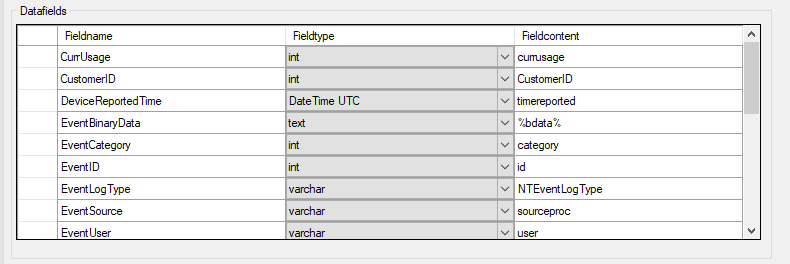
Action - ODBC Database Datafields
Fieldname#
- File Configuration field:
szFieldName_[n]
- Description:
Database column name in the destination table.
Fieldtype#
- File Configuration field:
nFieldType_[n]
1 = varchar
2 = int
3 = text
4 = DateTime
- Description:
Data type of the destination column. It must match both the database schema and the kind of property you are storing.
Fieldcontent#
- File Configuration field:
szFieldContent_[n]
- Description:
Event property or property-replacer expression written into the destination column. See event properties and property access and replacer syntax.
Practical mapping guidance#
For a custom syslog-oriented table, a minimal mapping often includes:
a timestamp column populated from
timegeneratedortimereporteda source column populated from
sourcea severity column populated from
syslogprioritya tag or application column populated from
syslogtagorsyslogappnamea message column populated from
msg
If a destination column is shorter than the source property, truncate or transform the value explicitly instead of hoping the driver or database will do the right thing.
Detail property logging#
Enable Detail Property Logging#
- File Configuration field:
nPropertiesTable
- Description:
Writes non-standard properties into a separate detail table. This can be useful when additional event metadata must be retained, but it also increases write volume.
Detaildata Tablename#
- File Configuration field:
szPropertiesTableName
- Description:
Table name used for detail-property logging. In the default schema, this is typically
SystemEventProperties.
Maximum value length (Bytes)#
- File Configuration field:
nMaxValueLength
- Description:
Maximum size in bytes for values written into the detail-property table.
Action Queue Options#
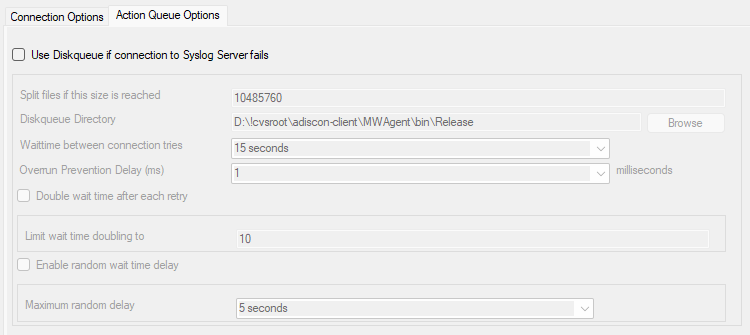
Action - ODBC Database Action Queue
Use Diskqueue if connection to database fails#
- File Configuration field:
nUseDiscQueue
- Description:
Stores pending writes on disk when the database path is temporarily unavailable.
Split files if this size is reached#
- File Configuration field:
nDiskQueueMaxFileSize
- Description:
Maximum size of each queue file in bytes before a new file is created.
Diskqueue Directory#
- File Configuration field:
szDiskQueueDirectory
- Description:
Directory used to store queue files for pending database writes.
Waittime between connection tries#
- File Configuration fields:
nDiskCacheWait
- Description:
Minimum wait time before the action retries the database connection after a failure.
Overrun Prevention Delay (ms)#
- File Configuration field:
nPreventOverrunDelay
- Description:
Optional delay between replayed queue writes to avoid overwhelming the target database after recovery.
Double wait time after each retry#
- File Configuration field:
bCacheWaittimeDoubling
- Description:
Doubles the retry wait time after each failure.
Limit wait time doubling to#
- File Configuration field:
nCacheWaittimeDoublingTimes
- Description:
Maximum number of retry doublings after repeated failures.
Enable random wait time delay#
- File Configuration field:
bCacheRandomDelay
- Description:
Adds a randomized delay to retry timing. This can reduce synchronized retry spikes when many senders reconnect at the same time.
Maximum random delay#
- File Configuration field:
nCacheRandomDelayTime
- Description:
Upper bound for the additional randomized retry delay.
Verification#
Use Verify Database before enabling production traffic.
Send a matching test event or message after saving the action.
Query the destination table and confirm that:
rows are inserted
values appear in the expected columns
data types and lengths are compatible with the schema
Common pitfalls#
Using a user DSN instead of a System DSN
Leaving the default field list unchanged while targeting a custom table
Using Create Database when the goal is an existing custom schema
Mapping text properties into integer or datetime columns
Using the SQL Server call-statement mode on non-Microsoft SQL Server targets
Forgetting that custom schemas may break compatibility with tools that expect the default Adiscon layout