How To Monitor Windows machines and Syslog devices?

How To Monitor Windows machines and Syslog devices?

Article created 2007-06-15 by Florian Riedl
Article updated 2011-06-15 by Tom Bergfeld

Info:
Please note that this article was written for older versions of MonitorWare products. But of course you can also use this guide for the current versions. In newer versions you maybe will find some additional settings, but the basic settings will be the same.

This Article describes how you can monitor the EventLog of your Windows hosts and your syslog devices at the same time. All log data will be stored in a central database for further processing. The description below shows you how to setup your central log server and how to setup your Windows hosts.
What do we need for this article?

  • One MonitorWare Agent – edition depending on number of remote hosts.
  • EventReporter Professional for sending EventLog data via SETP – number depending on Windows hosts to monitor.
  • Syslog sending devices – configured and running.
  • A SQL or Jet database – configured ODBC datasource on the central host.
  • Step 1:

    The first step is, to setup the central agent. This machine will get MonitorWare Agent installed. It will be the one which receives the syslog messages from your routers, switches, firewalls or unix hosts. And it will receive all EventLog data from your windows hosts via SETP.
    Please Note: For this example you need a ODBC datasource configured for a SQL database of your choice on this machine.

    Download MonitorWare Agent configuration file.

    Step 2:

    The second step is to setup the Windows machines, which should send all EventLog data to your central server. On these machines you install EventReporter. It will read the EventLog and forward all Windows Events to your central server via SETP.

    Download EventReporter configuration file.

    Step 3:

    In the third step you need to setup your syslog sending devices correctly. These devices can be routers, switches, firewalls or unix hosts. You need to configure the device so log messages are sent via syslog to your central host. Because of the variety of devices, we cannot give any specific guides for the setup. If there comes anything up, please ask your local administrator or the vendor of the device.
    Please Note: Adiscon dissociates itself from any issues that result in wrong confguration of these devices.

    Step 4:

    You are done! Your setup is complete. And everything works correctly, then your database should fill itself with your log data.

    Now that a basic setup has been created you could go on go on and bring in more detail. Creating reports with the stored data, automatic e-mails for your administrators or filtered log data are only a few of the many possibilities. You could combine Ping or Port Probes and the send e-mail action for alerting if a machine or a service fails or apply detailed filters before sending the log data to your central host.

    How To Export the Configuration and Create a Debug Log File

    How To Export the Configuration and Create a Debug Log File

    Article created 2017-11-15 by Pascal Withopf

    This Article describes you how you can export the configuration of your program and create a debug file. These are needed for troubleshooting.
    The Article is applicable to EventReporter, MonitorWare Agent and WinSyslog.

    How to Export the Configuration

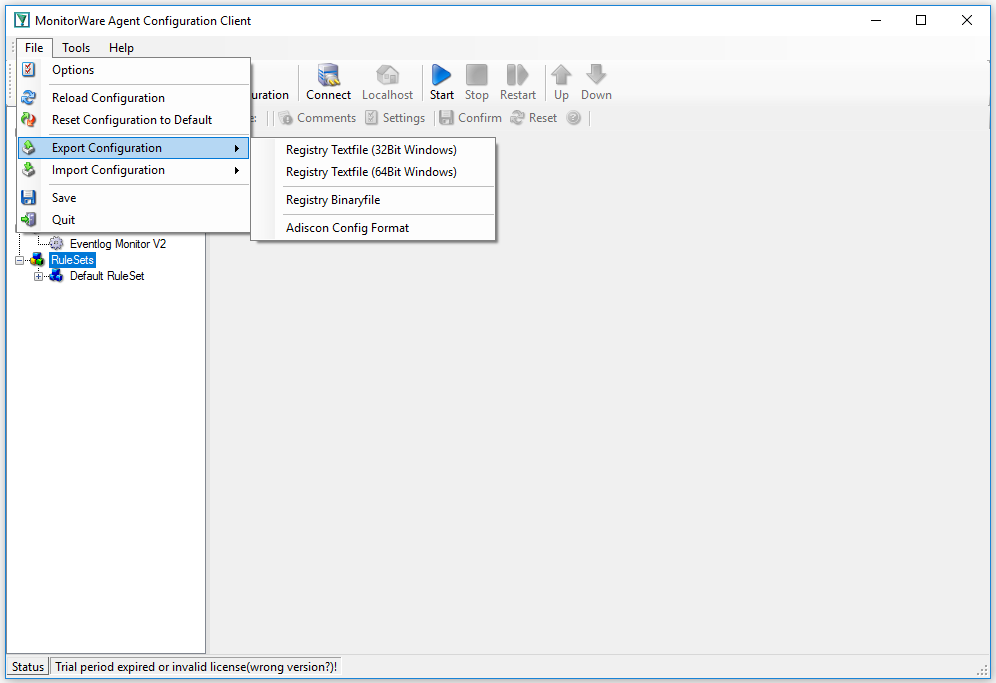
    Open the MonitorWare Agent you want to export the configuration from. Click on “File” in the left upper corner and then on “Export Configuration”.

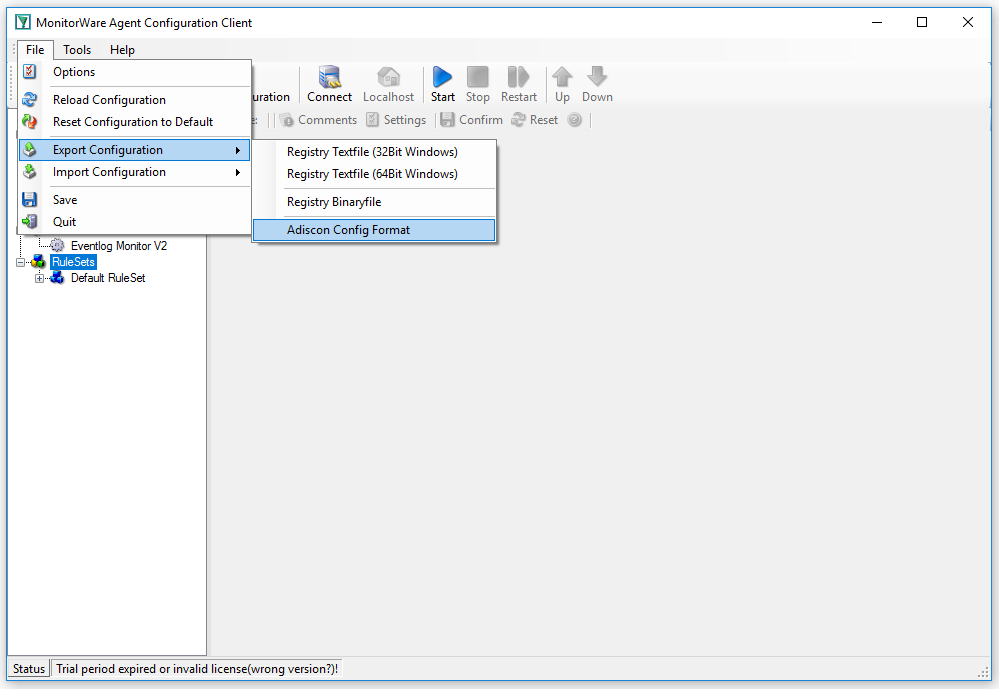
    Now you can select the format in which you want to export your configuration. The prefered option is always “Adiscon Config Format”. When able, you should always use it.

    It is always helpfull to use a good name for your config file. Just the name “config” will lead to confusion later.


    Creating a Debug File

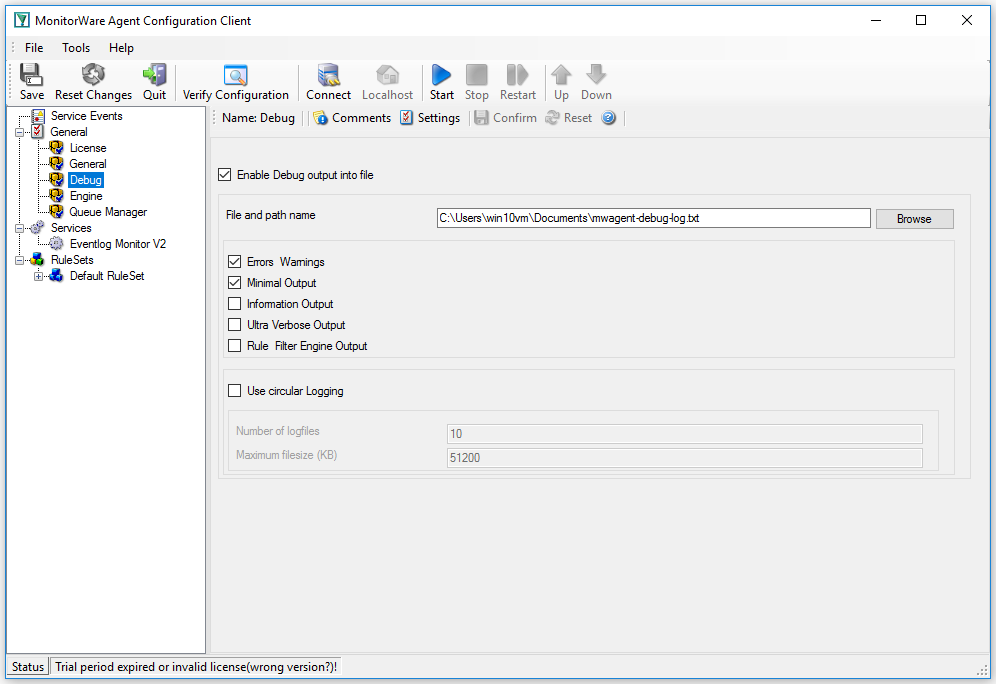
    To create a debug file, you need to click in the left tab on “debug”. It can be found under “General”.

    There you can check “Enable Debug output into file” and specify the file and path name. The next time you start MonitorWare Agent it will automatically create a debug file.

    How to use Stored Procedures with ‘write database’?

    How to use Stored Procedures with ‘write database’?

    Created 2007-05-08 by Rainer Gerhards.

    EventReporter,
    MonitorWare Agent and
    WinSyslog support stored procedures in
    their ‘write database’ actions.
    This option is supported for Microsoft SQL
    Server only. With other database systems, it might work, but Adiscon does not
    guarantee it.

    Stored procedures are used just like database tables. The main difference is
    that instead of the table name, the stored procedure name is provided and
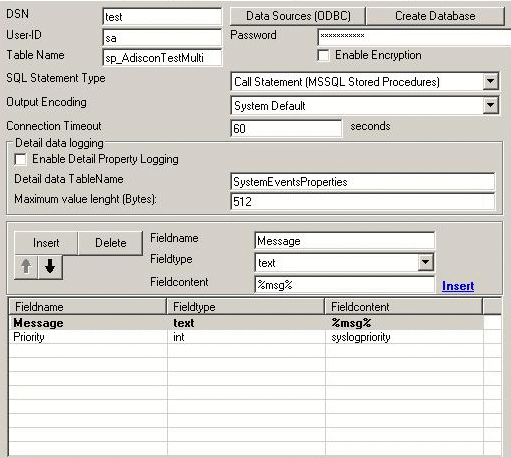
    instead of field names, parameters are provided. An example configuration looks
    like this:

    Using stored procedures with WinSyslog, MonitorWare Agent and EventReporter

    The field order is relevant. Fields will be passed in that order as stored
    procedure arguments. In the sample above, “Message” becomes sp argument 1 and “Priority”
    argument 2. Of course, users need to supply the actual stored procedure. The
    configuration above could be used with a stored procedure like this:

    Please note that processing within the stored procedure is the user’s
    responsibility. Most importantly, a stored procedure should not take too long to
    execute, because this might affect overall product performance.

    Can I use the old EventLog Monitor with Vista?

    Can I use the old EventLog Monitor with Vista?

    Created 2007-04-18 by Florian Riedl.

    Windows Vista available since early 2007. Due to the changes Microsoft introduced with Vista, the procedure for monitoring event logs with the non-Vista event log monitor has changed.  Adiscon introduced the native Vista EventLog Monitor V2 which requires no specific prerequisites. Some customers still prefer to use the previous EventLog Monitor. We recommend against this. However, there may be some reasons for doing so. If so, you have to go to “Control Panel -> Administrative Tools -> Services”. In the list of Windows internal services you have to find the service named “Remote Registry” and start it.

    Remote Registry Service

    Once the Service is started, you are able to fully use the old EventLog Monitor again, just like if you use Windows XP. Please keep in mind that only the XP-like subset of event logging is available via that monitor. To fully process Vista event logs, you need to switch to the V2 event log monitor.

    Customers with further questions should kindly contact Adiscon support at support@adiscon.com.

    How To setup a Start Program Action

    How To setup a Start Program Action

    Article created 2007-04-12 by Florian Riedl.

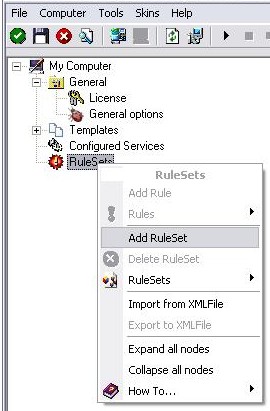
    1. First we define a new rule set. Right-click “Rules”. A pop up menu will appear. Select “Add Rule Set” from this menu. On screen, it looks as follows:

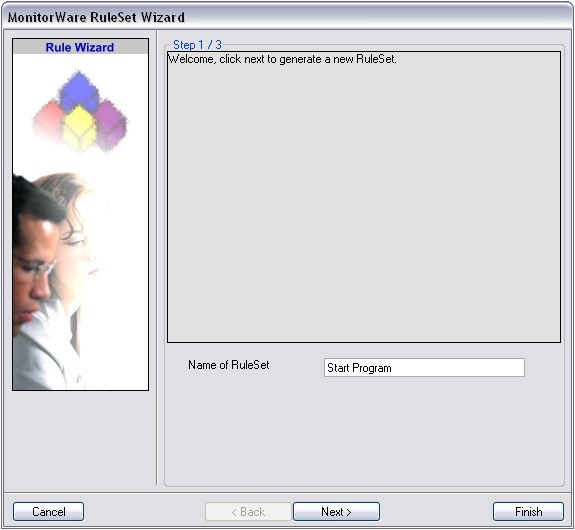
    2. Then, a wizard starts. Change the name of the rule to whatever name you like. We will use “Start Program” in this example. The screen looks as follows:


    Click “Next” to go on with the next step.

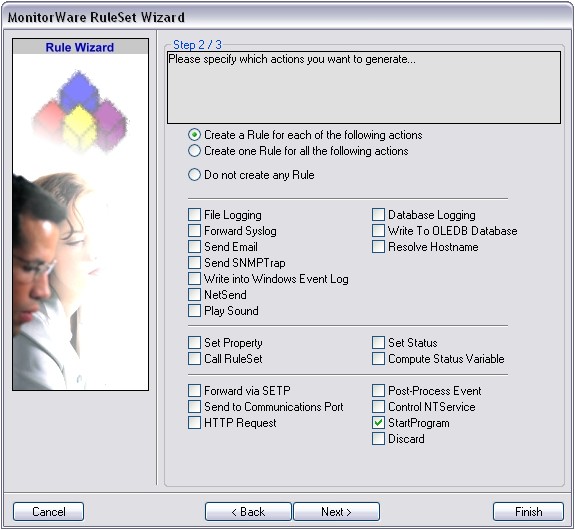
    3. Select only “Start Program”. Do not select any other options for this sample. Also, leave the “Create a Rule for each of the following actions” setting selected. Click “Next”. You will see a confirmation page. Click “Finish” to create the rule set.

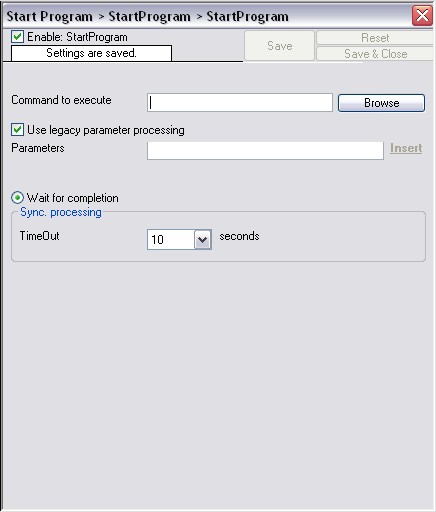
    4. As you can see, the new Rule Set “Set Property” is present. Please expand it in the tree view until the action level of the “Set Property” Rule and select the “Set Property” action to configure.

    5. You can use this action to start programs and scripts on the occurence of special Events. Mostly this action is used in conjunction with strict filter settings. It allows you to begin with counter-measures if something happens.

    6. By clicking on the “Browse”-Button a windows opens up. Here you can specify the program or script you want to use. After that you can specify special parameters that should be used upon execution. These will be used as command-line parameters. Further there are parameters available which refer directly to message properties. That way you can use information from the messages as parameters. For more information on these, refer to the manual
    internal property list

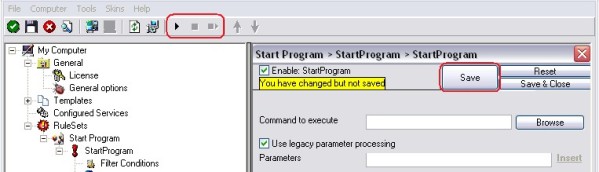
    7. Finally, make sure you press the “Save” button – otherwise your changes will not be applied. Then start the service and you are done.

    How To setup EventLogMonitor V2 Service

    How To setup EventLogMonitor V2 Service

    Article created 2007-04-10 by Florian Riedl
    Article updated 2011-05-25 by Tom Bergfeld.

    Please note:

    Starting with EventReporter 8.3 and MonitorWare Agent 4.3 two different event log monitor services are provided. They are called “Event Log Monitor” (V1) and “Event Log Monitor V2”. In short, the V2 version is recommended for Windows Vista (and above, e.g. Longhorn Server) while the other version is for previous releases of Windows (NT, 2000, 2003, XP). Please find more information about the different EventLogMonitors at Which Event Log Monitor to use.
    There is also a guide How To setup EventLogMonitor V1 Service.

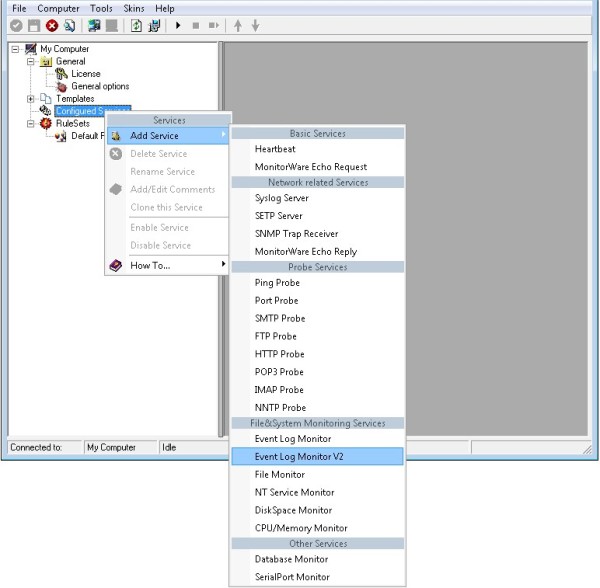
    1. First, right click on “Services”, then select “Add Service” and then “Event Log Monitor V2”:

    create service

    2. Once you have done so, a new wizard starts.
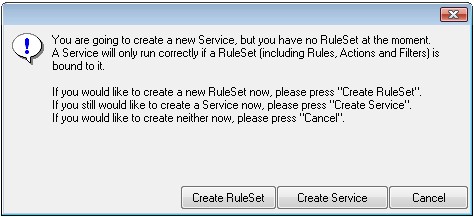
    If the following Popup appears, please select “Create Service”:

    create the service

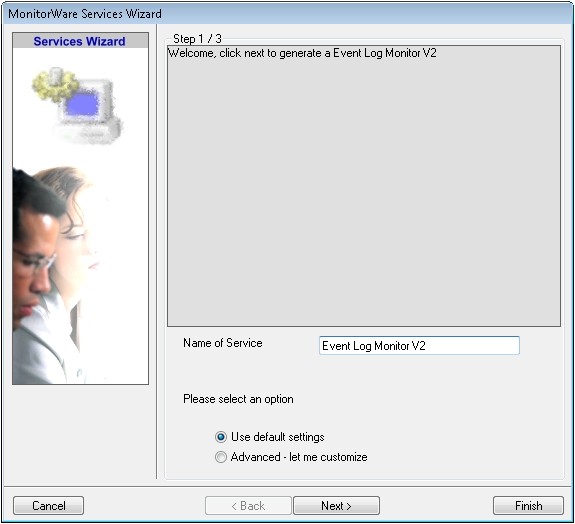
    Again, you can use either the default name or any one you like. We will use the default name in this sample. Leave the “Use default settings” selected and press “Next”.
    service name

    3. As we have used the default, the wizard will immediately proceed with step 3, the confirmation page. Press “Finish” to create the service. The wizard completes and returns to the configuration client.

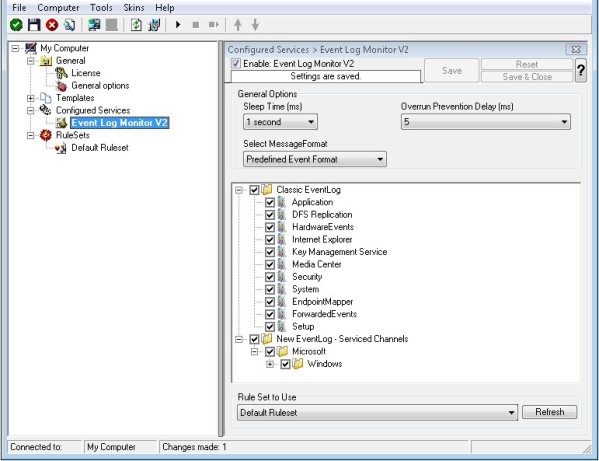
    4. Now, you will see the newly created service beneath the “Services” as part of the tree view. To check its parameters, select it:

    view service
    As you can see, the service has been created with the default parameters.

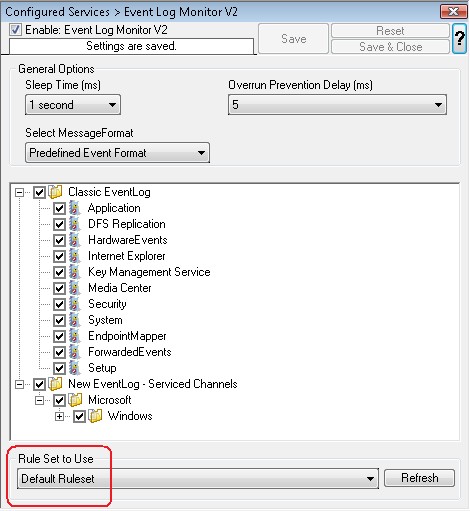
    Note: The “Default RuleSet” has been automatically assigned as the rule set to use. By default, the wizard will always assign the first rule set visible in the tree view to new services.

    5. Finally we, bind a ruleset to this service. If you already have a ruleset, simply choose one. If not, then you will have to create one, or insert the actions you want to take in the default ruleset.
    Remember, this is only an example. You can do it in any way you want.

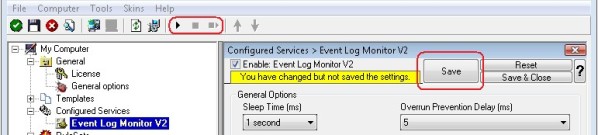
    6. The last step is to save the changes and start the service. This procedure completes the configuration of the syslog server.

    The NT Service cannot dynamically read changed configurations. As such, it needs to be restarted after such changes. In our sample, the service was not yet started, so we simply need to start it. If it already runs, you need to restart it.

    That’s it. This is how you create a simple EventLog Monitor V2 for Vista.

    I get format message errors (code 317). What does this mean?

    I get format message errors (code 317). What does this mean?

    Created 2007-04-10 by Florian Riedl.

    You can come across this specific error, by reviewing your EventLog data. The EventLog Monitor writes an entry to the EventLog and then retries. If debug is activated, a entry will be created there, too, looking like this:

    “2212 | 1175784330 | Error | Error FormatMessage return 0, GetLastError = ‘317’”

    The reason for this error is, that there is something wrong with the source of the message. Mostly this could happen if the EventLog Monitor reads events for applications, which are no longer installed. Another cause could be, that the source simply is corrupted. In these cases this error occurs. Basically spoken, this is not a problem of the EventLog Monitor, but a problem of the system itself having inaccurate sources.

    In general, there is no real problem. The EventLog Monitor will continue to work just fine. It will simply go on with its run. Therefore you shouldn’t panic if this error occurs. It will be very helpful to first think about which application caused the entry and then check if it is proper installed. If it doesn’t occur too often, it isn’t even worthy bothering.

    If you need further information about format message errors or have questions and ideas concerning our products, send a mail to our Support Team.

    Which Event Log Monitor to use for Vista?

    Which Event Log Monitor to use for Vista?

    Created 2007-04-10 by Rainer Gerhards.

    Starting with EventReporter 8.3 and MonitorWare Agent 4.3 two different event log monitor services are provided. They are called “Event Log Monitor” (V1) and “Event Log Monitor V2”. In short, the V2 version is recommended for Windows Vista (and above, e.g. Longhorn Server) while the other version is for previous releases of Windows (NT, 2000, 2003, XP).

    But why does Adiscon provide two different event log monitors and not combine them into a single one? The root cause is a change in Windows. Windows Vista comes with a totally new event logging system. While to the casual user it looks quite similar to the previous system, it actually was re-designed from scratch (at least to the best of my knowledge). Microsoft realized that the old system was too limited to catch up with today’s administrative and auditing needs. Instead of trying to add more and more bells and whistles to the old  system, Microsoft did the right thing and engineered a new, well designed one. That new system provides a compatibility layer which will make it look familiar to the user. The layer also emulates the previous API calls. For that reason, even our V1 event log monitor works quite well. It, too, could be used to poll Vista logs. However, there are a number of good reasons to use the V2 version:

    • support the variety of new Vista event logs
    • support for new and improved message formats
    • great performance thanks to using native APIs and event subscriptions
    • there are some subtle compatibility problems with the legacy APIs. We assume that Microsoft fixes that in some point in the future. But why wrangle with problems when you can avoid them?
    • the V2 monitor is a Vista native and thus performs well and very robust

    The V2 event log monitor is not available on Windows 2000, 2003 and XP because the required APIs are not available on those platforms.

    Customers interested in monitoring Windows Vista as well as Windows 2000, 2003 and XP systems can do that form a single machine. To do so, V1 and V2 event log monitors can be combined. Multiple of them can be configured and running at the same time. The only restriction is that this EventReporter/MonitorWare Agent must run on a Vista machine because only Vista provides the necessary APIs for the V2 monitor. Customers with further questions should kindly contact Adiscon support at support@adiscon.com.